
HDRLightStudio是一款专业级高动态范围3D渲染软件HDR制作软件,能够帮助3D艺术家快速设计、创建、调整HDRI高动态范围照明/反射图,包括摄影工作室光照效果。其核心特点在于提供基于图像的照明技术,能够高效、精准地创建和编辑高动态范围光源。软件采用独特的“灯光绘制”工作流程,用户无需在三维空间中反复调整灯光位置,可直接在HDR环境贴图上通过画笔、几何形状等工具实时绘制高光与反射,所见即所得。它支持与几乎所有主流3D软件实时链接,灯光调整效果即时同步到渲染视图中,极大提升了打光效率与创作自由度。无论是追求写实还是风格化的渲染,HDRLightStudio都能帮助艺术家快速构建出复杂、逼真且富有层次的光照环境,是视觉特效、产品可视化等高端CG工作流程中不可或缺的灯光解决方案。
1. Start HDR Light Studio Plug-in
Choose between the compatible renderers: Cinema 4D native renderer, V-Ray, Octane, Arnold, Redshift or Corona. Starting the HDR Light Studio plug-in will open a dedicated lighting interface connected to your current Cinema 4D session. Whilst you light in HDR Light Studio, all the lighting will be automatically built in your Cinema 4D scene.
2. Drag and drop Lights
HDR Light Studio comes with a huge library of realistic HDR lighting content. Quickly browse the lighting library then drag and drop lights onto the model to build your own HDRI Map and area light setups. You can try 6 of our area light map textures here for free.
Explore the preset system
3. Precisely paint the light positions
With the LightPaint feature, positioning lights exactly where needed can be done with just one click. Simply click and drag on your model!
Explore the LightPaint feature

Widely Compatible with Regular Plug-in updates
HDR Light Studio Plug-in for Cinema 4D (Build: 2025.0518)
Operating system: Windows 10, 11 & MacOS 11.4 (Big Sur) or later
Cinema 4D: 2023, 2024, 2025
Renderers: Cinema 4D native renderer, Redshift, V-Ray 5, Octane, Arnold, Corona

Learn lighting in minutes and see instant results
We understand it’s difficult to add more tools to your workflow. It’s why we have engineered HDR Light Studio in a way that’s easy and most importantly quick to learn. You’ll see improvements in the speed and quality of your lighting just by following our HDR Light Studio and Cinema 4D Plug-in Quick Start videos.
包含软件接口插件 Connections:
3DS MAX 2022 – 2024
Blender 2.83+
Cinema 4D R26-2023-2024-2025
DeltaGen 2017 – 2023
Houdini 18 – 19
LightWave3D 2018 – 2020
Maya 2023-2024
Modo 14 – 16
Octane Render 2022
Omniverse 2023
Rhino 6 – 7
Unreal 5.2-5.3
主要步骤:
1、关闭杀毒,防止误删
2、安装HDRLightStudio_Win_8.2.6.2025.0304.exe
3、拷贝HDRLS.dll和OpenColorIO_2_3.dll到安装目录,替换
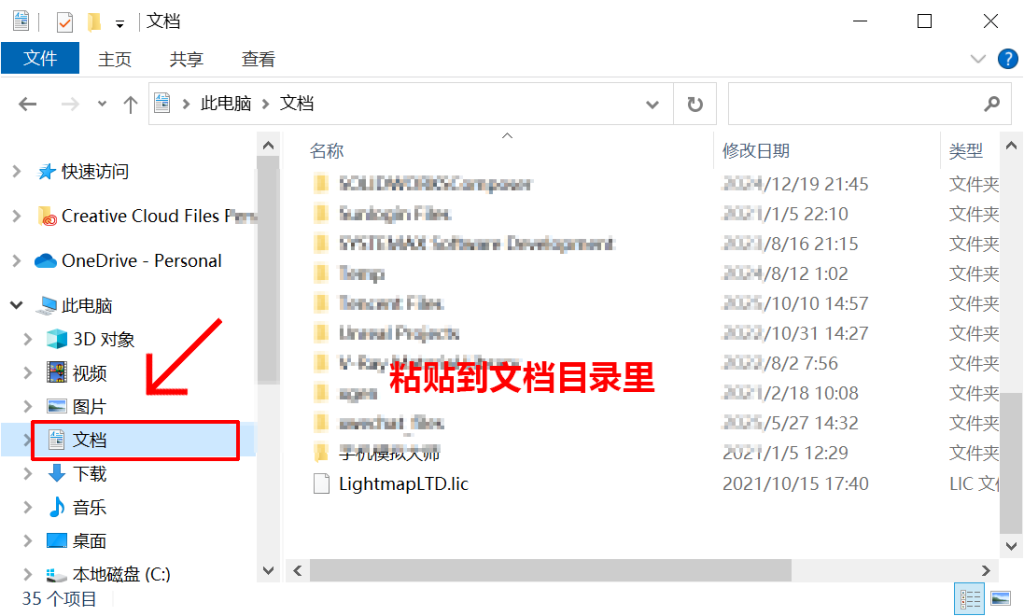
4、拷贝LightmapLTD.lic到 文档\LightmapLTD.lic
5、在系统高级设置里,环境变量,新建一个用户变量,变量名为LIGHTMAP_LICENSE,变量值为LightmapLTD.lic文件的路径(可以浏览文件,查找即可)
详细步骤:
注意:这是所有版本的安装方法,安装方法都是一样的,不要去纠结安装图片上的版本号,操作都是一样。HDRLightStudio_Win_8.2.6.2025.0304 Win模漾网亲测成功安装!下面是详细的图文教程!请详细阅读每一个步骤。
第一步:双击Lightmap HDR Light Studio Xenon V8.2.6 程序进行安装。
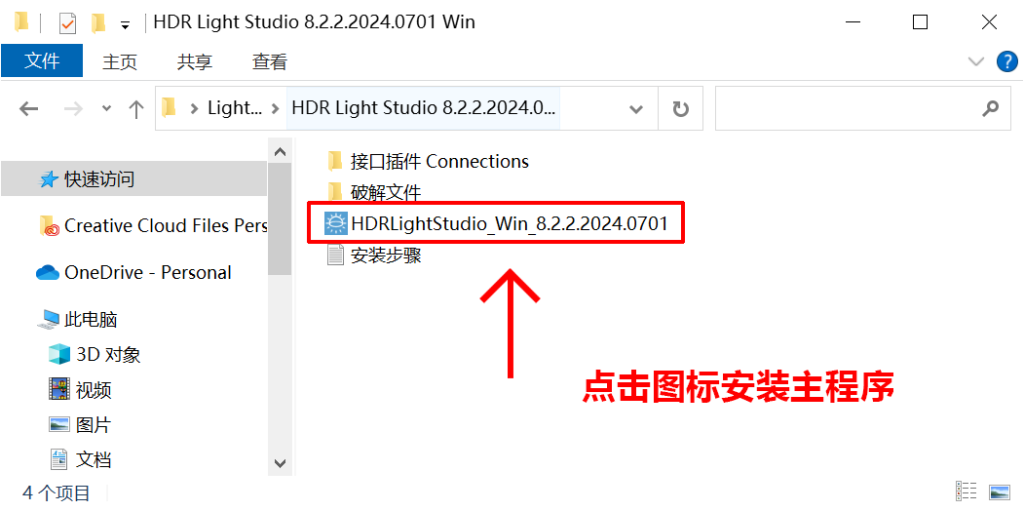
安装完成后 选“I Agreee”
然后点击 “Install”(非常重要!请注意:安装的路径千万不要更改!不然后面会出错!默认的C盘就可以)
继续下一步,点击“Next”
最后点击“Close”(记得把那个默认的勾取消)
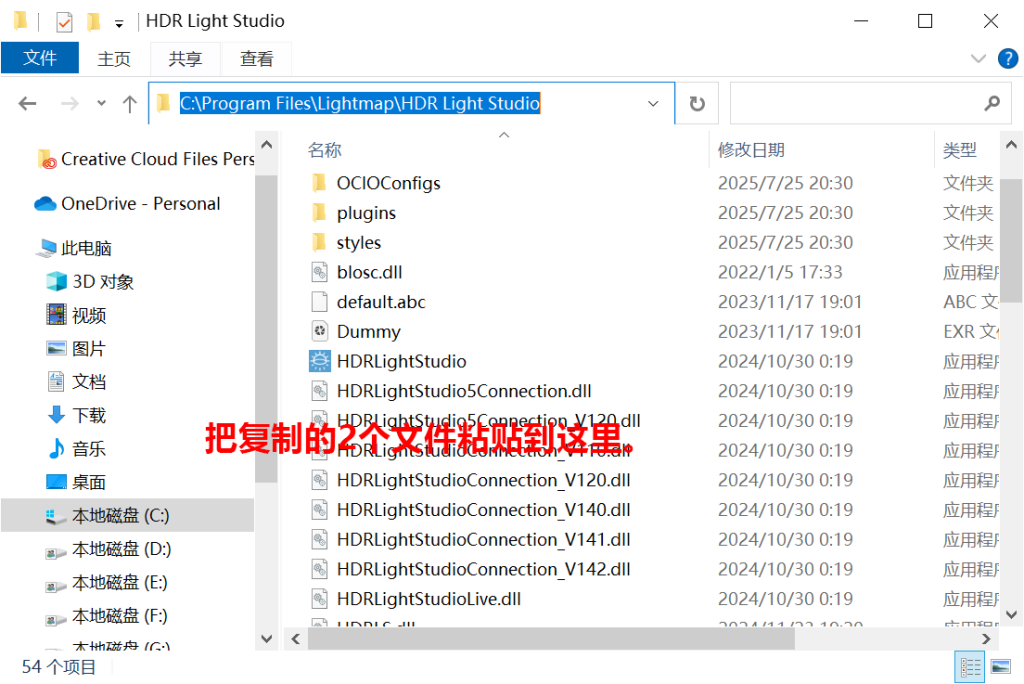
第二步:拷贝替换文件里面的HDRLS.dll和OpenColorIO.dll两个文件到安装目录,进行替换。(因防火墙可能有时会不见文件,从RAR压缩包里重新解压)
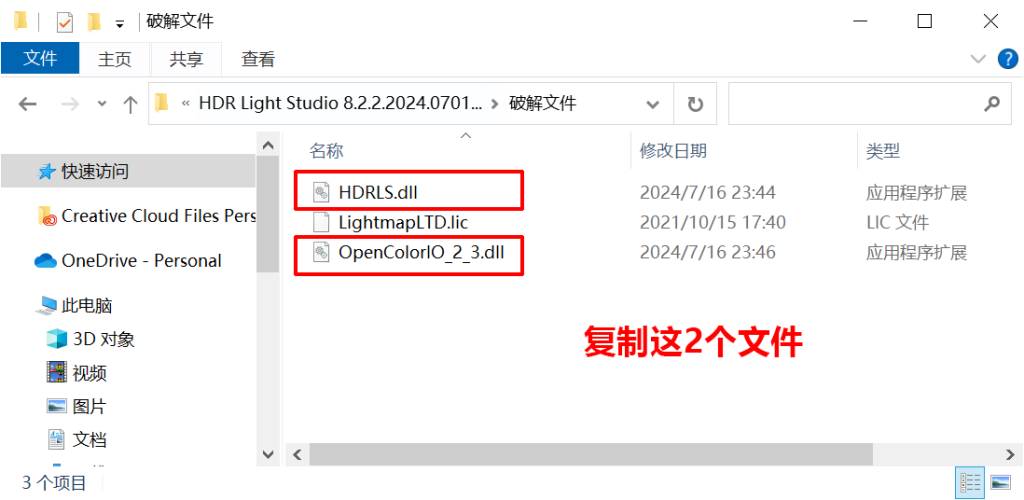
替换目录为:C:\Program Files\Lightmap\HDR Light Studio
第三步:拷贝LightmapLTD.lic到文档(文档目录如下图)
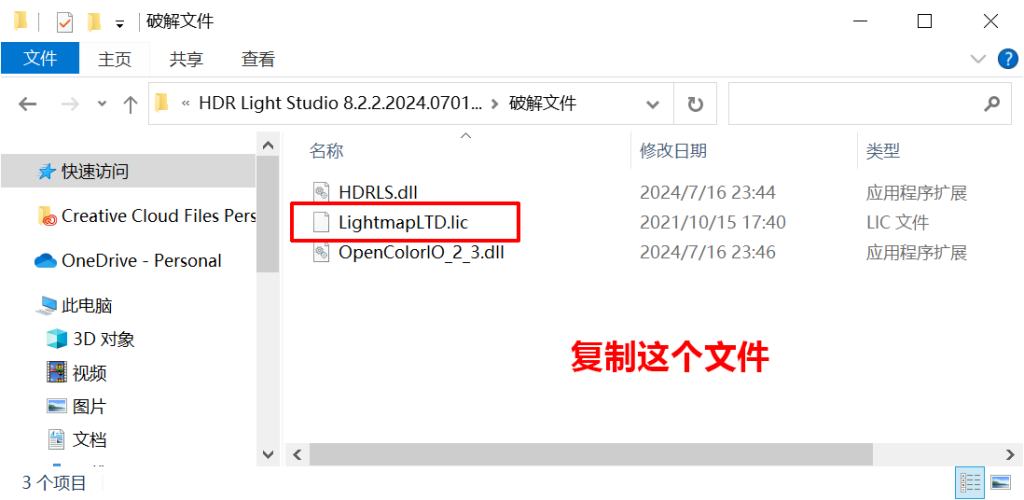
粘贴到下面的文档
第四步:设置环境变量
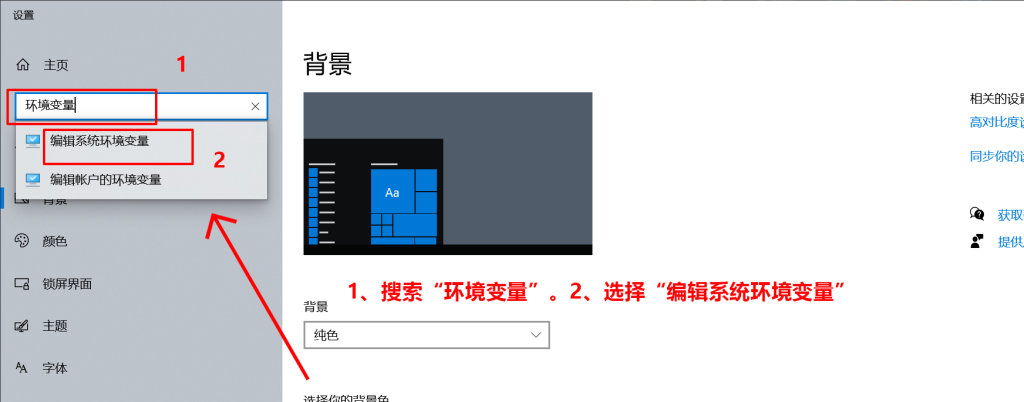
windows设置 – 搜索“环境变量” – 选择“编辑系统环境变量”
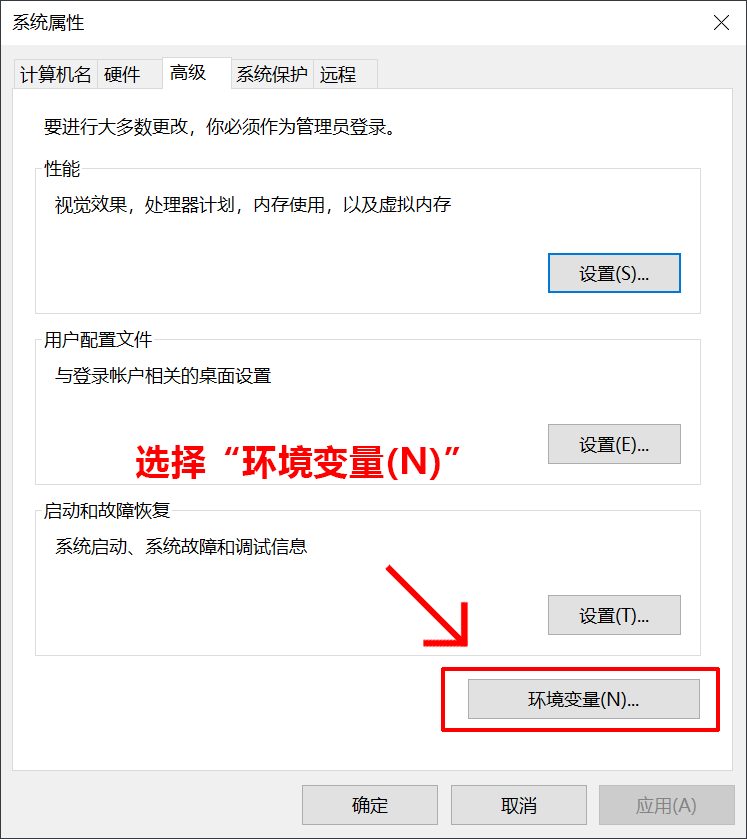
再点击“高级”选项下的“环境变量(N)”按钮,
在“系统变量(S)”中点击“新建(W)”按钮
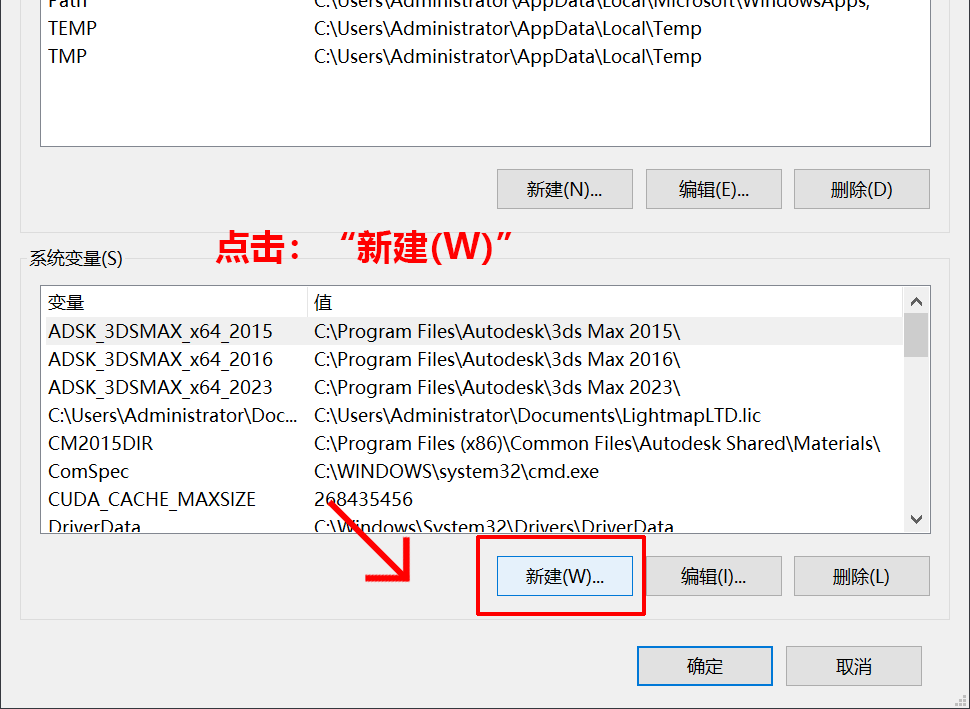
变量名:填 比如”LIGHTMAP_LICENSE”
变量值:C:\Users\用户的名字\Documents\LightmapLTD.lic
变量值选择方法如下图:
重要!粘贴好变量值后,一定记得点确认。
第五步:到这里已经成功安装好了软件,在你电脑的开始那里的找到软件,双击打开软件
成功安装破解软件
第六步:到这里就成功安装破解了软件。最后就是去【桥接插件文件】文件夹里找对应的软件和版本进行安装!
比如C4D,去下载包里的桥接插件文件里找到选择对应版本,比如我需要安装到C4D R26里,那就打开Cinema4D_26_Win_2021.0519复制HDRLightStudio粘贴到C4D R26的插件文件plugins里即可!
第七步:完成安装,重启C4D就可以找到这个插件。
下面的模漾网亲测的R2023版本成功的截图。
1、模漾网所有软件和资料均软件作者提供和网友投稿推荐/互联网收集整理,供学习和研究使用。如足够证据表明侵犯原著版权,联系本站。
2、非商户的作品版权归原作者所有,仅供参考学习,非商业使用。





评论0